



A Roku device connects to the internet Roku IP address to stream content from platforms like Netflix, YouTube, and Prime Video. Every device connected to a network is assigned a unique numerical identifier called an IP (Internet Protocol) address. Knowing your Roku’s IP address can be useful for troubleshooting network problems, configuring routers, setting up parental controls, or diagnosing streaming errors.
This guide explains what an IP address is, why you might need it, and multiple ways to find your Roku IP address easily.
What Is an IP Address?
192.168.1.25
Your Roku may have:
- Private IP address – Used within your home network
- Public IP address – Assigned by your internet service provider (ISP)
Most users only need the private IP address, which can be found directly on the Roku device or through the router.
Why You May Need Your Roku IP Address
Finding your Roku IP address can help in several situations, such as:
- Troubleshooting Wi-Fi or streaming issues
- Setting up router-level parental controls
- Managing connected devices on your network
- Diagnosing buffering or connection drops
- Using advanced router features like port forwarding
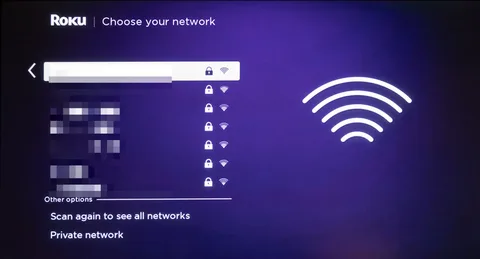
Method 1: Find IP Address Directly on Roku (Recommended)
This is the easiest and most accurate way.
Steps:
- Turn on your TV and Roku device
- Press the Home button on your Roku remote
- Go to Settings
- Select Network
- Choose About
What You’ll See:
- IP Address
- Connection Type (Wireless or Wired)
- Signal Strength
- MAC Address
- Gateway and DNS information
Your Roku’s IP address will be clearly listed on this screen.
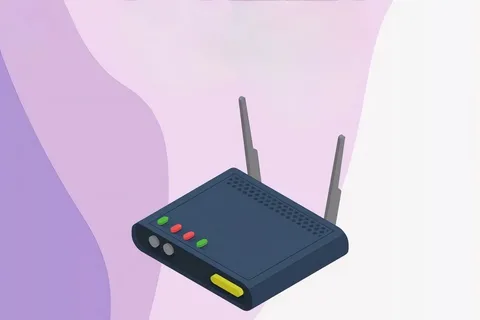
Method 2: Find Roku IP Address Using Your Router
If your Roku screen isn’t accessible, you can find the IP address through your router’s settings.
Steps:
- Open a web browser on your phone or computer
- Enter your router’s IP address (commonly
192.168.0.1or192.168.1.1) - Log in using your router username and password
- Navigate to Connected Devices, Device List, or DHCP Clients
- Look for a device named Roku, Streaming Device, or similar
The IP address will appear next to the Roku device entry.
Tip: If you see multiple devices, match the Roku by its MAC address, which you can find on the Roku’s Network page.
Method 3: Find Roku IP Address Using the Roku Mobile App
The Roku mobile app can help indirectly if your phone is on the same Wi-Fi network.
Steps:
- Install the Roku Mobile App on Android or iOS
- Connect the app to your Roku device
- Check your router’s device list to identify Roku once it appears as active
While the app itself doesn’t always show the IP address directly, it helps confirm which device belongs to Roku when checking router settings.
Method 4: Use a Network Scanner App
You can use third-party network scanning apps to find all devices connected to your Wi-Fi network.
Popular Tools:
- Fing
- Advanced IP Scanner
- Net Analyzer
Steps:
- Install a network scanner app
- Scan your Wi-Fi network
- Locate the device labeled Roku or streaming device
- Note the IP address displayed
This method is useful when router access is unavailable.
How to Find Public IP Address Used by Roku
Your Roku shares the same public IP address as other devices on your network.
Steps:
- Open a browser on any device connected to the same network
- Search “What is my IP”
- The number shown is your public IP address
This address is assigned by your ISP and may change periodically.
Troubleshooting Tips
If you cannot find the IP address:
- Ensure Roku is powered on and connected to Wi-Fi
- Restart your Roku device
- Restart your router
- Check that you’re connected to the same network
- Update Roku software if needed
Frequently Asked Questions
Does Roku IP address change?
Yes. Most routers assign dynamic IP addresses, which can change after restarts or over time.
Can I set a static IP for Roku?
Yes, through your router’s DHCP reservation feature.
Is it safe to share my Roku IP address?
Your private IP address is generally safe within your home network, but avoid sharing public IP addresses online.
Conclusion
Finding your Roku IP address is a simple but valuable task for network management and troubleshooting. The fastest method is through Settings > Network > About, while router settings and network scanning tools provide alternatives when the Roku screen is inaccessible. Whether you’re fixing streaming issues or managing your home network, knowing where to find your Roku IP address gives you better control over your device and connection.