






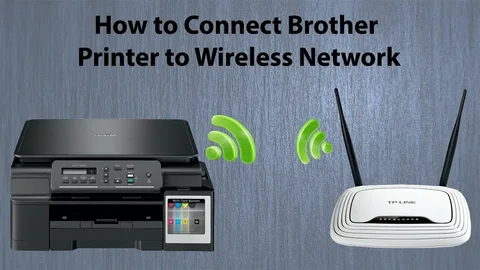
Connecting a Brother printer to WiFi allows you to print wirelessly from your laptop, desktop, smartphone, or tablet without using any cables. This makes printing much more convenient in homes, offices, and shared work environments where multiple users need access to the same printer. Although the setup may look technical at first, it becomes very simple when you follow the correct steps in order.
Before starting the setup, make sure you know your WiFi network name (SSID) and password. Also ensure your printer is turned on and placed within a good range of your router. A weak signal can cause connection issues or unstable printing, so proximity is important for smooth setup.
Connect Using Printer Control Panel
If your Brother printer has a display screen, you can easily connect it through the control panel. First, press the Menu button and go to Network Settings or WiFi Settings. Select WLAN or Wireless Setup Wizard and press OK. The printer will start searching for available networks. Choose your WiFi name from the list and enter the password carefully using the keypad. After confirming the details, the printer will connect to the network. Once successful, you will see a WiFi symbol or confirmation message on the screen.
If your router supports WPS, this is the fastest method. Press the WPS button on your router first, then within two minutes press and hold the WiFi button on your Brother printer. The device will automatically connect to your network without requiring a password. Once connected, the WiFi light will stop blinking and remain stable, confirming a successful connection.
Connect Using Computer Setup Software
If your printer does not have a display screen, you can use your computer for setup. Connect the printer to your computer temporarily using a USB cable. Then download the official Brother printer software from the Brother support website. Open the setup program and select Wireless Network Connection. Follow the instructions, choose your WiFi network, and enter your password. After setup is complete, you can remove the USB cable and continue using the printer wirelessly.
Connect Using Brother Mobile App
You can also connect your printer using the Brother mobile app. Download the app on your Android or iPhone and open it. Turn on your printer and follow the instructions inside the app to detect your device. Select your WiFi network, enter the password, and complete the setup. Make sure your phone is connected to the same WiFi network during the process.
How to Check Wi-Fi Connection
After setup, you should confirm that your printer is properly connected. You can print a network configuration page from the printer menu, which will show WiFi status and IP address. You can also try printing a document from your phone or computer. If it prints successfully, your connection is working correctly.
Installing Printer Drivers
Once connected, install the latest printer drivers from the official Brother website. Select your model, download the correct software for Windows or Mac, and install it. After installation, set your printer as the default device for easy printing.
Troubleshooting Wi-Fi Issues
If your printer is not connecting, restart both your printer and router. Double-check your WiFi password for errors. Make sure your printer is within range of the router. Also confirm your network is 2.4 GHz because many Brother printers do not support 5 GHz. If your WiFi settings were changed, reconnect the printer again.
Mobile Printing Option
Benefits of Wi-Fi Printing
Wi-Fi printing removes the need for cables, allows multiple devices to connect, and makes printing more flexible. You can print from anywhere in your home or office, improving convenience and productivity.
Conclusion
Connecting a Brother printer to Wi-Fi is a simple process that improves printing flexibility and efficiency. Whether you use the control panel, WPS method, computer software, or mobile app, each option helps you set up wireless printing quickly. Once connected, you can enjoy smooth, cable-free printing from any device with ease. In addition, wireless printing improves overall productivity by removing the need for constant cable connections and manual setup each time you print.
It allows multiple users in a home or office to access the same printer without interruption, making collaboration much easier. You can also print documents from different rooms as long as you are connected to the same WiFi network. This flexibility saves time, reduces effort, and creates a more organized workspace. Regular updates and stable internet connectivity further ensure consistent performance and reliable printing every day.