




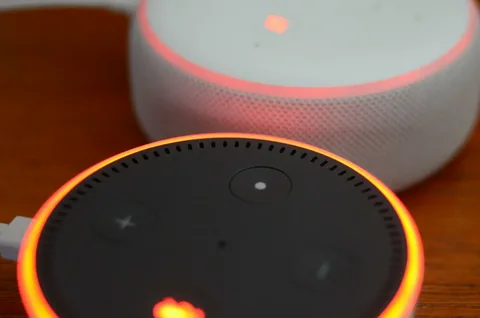
If your Alexa Flash Briefing is not working properly, don’t worry. This guide explains the common causes and provides step-by-step solutions to fix the issue effectively.
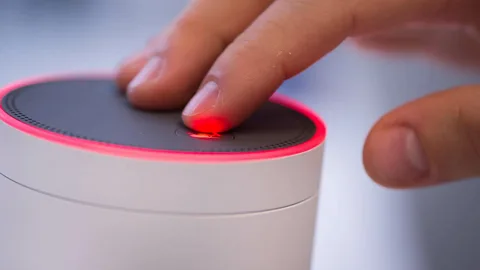
Common Reasons Alexa Flash Briefing Stops Working
Before jumping into solutions, it’s important to understand why the issue occurs. Common reasons include:
- Poor or unstable internet connection
- Alexa app glitches or outdated version
- Disabled or misconfigured Flash Briefing settings
- Issues with specific news providers
- Amazon server outages
- Device software problems
Identifying the cause will help you apply the correct fix.
Solution 1: Check Your Internet Connection
Alexa relies heavily on a stable internet connection to fetch Flash Briefing content.
Steps:
- Ask, “Alexa, are you connected to the internet?”
- Restart your Wi-Fi router and modem
- Move your Alexa device closer to the router
- Avoid network congestion by disconnecting unused devices
If your internet is slow or unstable, Flash Briefing may fail to load or stop midway.
Solution 2: Restart Your Alexa Device
A simple restart can fix temporary glitches affecting Flash Briefing.
Steps:
- Unplug your Alexa device from the power source
- Wait for 30–60 seconds
- Plug it back in and allow it to reboot
Once restarted, try asking Alexa for your Flash Briefing again.
Solution 3: Check Flash Briefing Settings in Alexa App
Misconfigured settings can prevent Flash Briefing from working correctly.
Steps:
- Open the Alexa app on your phone
- Tap More > Settings
- Select Flash Briefing (or News, depending on app version)
- Ensure Flash Briefing is enabled
- Review and manage your selected news sources
Remove any unavailable or broken sources and re-add them if necessary.
Solution 4: Disable and Re-enable Flash Briefing Skills
Sometimes individual news or content skills stop responding.
Steps:
- Open the Alexa app
- Go to More > Skills & Games
- Select Your Skills
- Find Flash Briefing-related skills
- Disable the skill, then enable it again
This refreshes the connection between Alexa and the content provider.
Solution 5: Update the Alexa App
Using an outdated Alexa app can cause compatibility issues.
Steps:
- Visit the Google Play Store or Apple App Store
- Check for updates for the Alexa app
- Install the latest version
- Reopen the app and test Flash Briefing
Regular updates fix bugs and improve performance.
Solution 6: Check for Alexa Device Software Updates
Alexa devices receive automatic updates, but delays can occur.
Steps:
- Say, “Alexa, check for software updates”
- Leave the device powered on and connected to Wi-Fi
- Wait for the update to complete
Outdated firmware can cause Flash Briefing to malfunction.
Solution 7: Change Flash Briefing Order or Content Providers
Sometimes a specific provider causes the entire briefing to fail.
Steps:
- Open the Alexa app
- Go to Settings > Flash Briefing
- Remove one provider
- Test Flash Briefing
- Add providers back one by one
This helps identify and eliminate problematic content sources.
Solution 8: Check Amazon Server Status
Occasionally, the issue is on Amazon’s end.
What to Do:
- Visit Amazon’s service status page
- Check online forums or social media for outage reports
- Wait until services are restored
During outages, Flash Briefing may not work regardless of device settings.
Solution 9: Re-link Your Amazon Account
Account syncing issues can disrupt Flash Briefing.
Steps:
- Open the Alexa app
- Go to Settings > Account Settings
- Sign out of your Amazon account
- Restart your phone
- Sign back in and test Flash Briefing
This refreshes account data and resolves syncing errors.
Solution 10: Reset Alexa Device (Last Resort)
If nothing else works, resetting the device may help.
Steps:
- Open the Alexa app
- Go to Devices
- Select your Alexa device
- Choose Reset to Factory Defaults
Note: This will erase all settings and require reconfiguration.
Additional Tips for Smooth Flash Briefing Performance
- Use clear voice commands
- Avoid overlapping routines during Flash Briefing
- Keep only relevant content sources enabled
- Schedule Flash Briefing at low network usage times
- Regularly review and update briefing sources
Frequently Asked Questions
Can Flash Briefing play outdated news?
Yes, if the provider hasn’t updated content or there’s a sync delay.
Does Flash Briefing work differently by region?
Yes, available content sources vary depending on your country.
Conclusion
Alexa Flash Briefing not working can be frustrating, especially if you rely on it for daily updates. Fortunately, most issues can be resolved by checking your internet connection, reviewing Flash Briefing settings, updating software, or refreshing content providers. By following the steps outlined above, you can restore Flash Briefing functionality and enjoy uninterrupted, personalized news updates every day.