



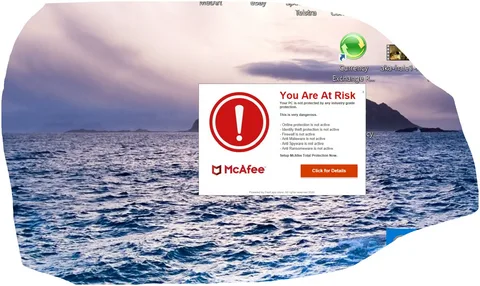
McAfee and Norton are well-known antivirus programs designed to protect your computer from malware, viruses, and online threats. However, many Windows 11 users complain that these programs generate constant pop-ups, including subscription reminders, renewal warnings, promotional offers, and security alerts. While some notifications are important, excessive pop-ups can interrupt your work, slow down your system, and create unnecessary stress.
If you’re tired of seeing McAfee or Norton pop-ups on your Windows 11 computer, this guide will walk you through safe, effective, and permanent ways to stop them—whether you want to silence notifications, disable marketing messages, or remove the software completely.
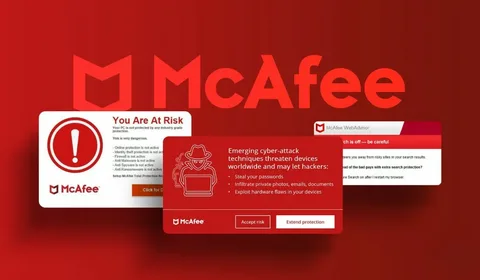
Why McAfee and Norton Pop-Ups Appear
Before fixing the issue, it’s helpful to understand why these pop-ups appear in the first place:
- Expired or trial subscription alerts
- Promotional offers and upgrade reminders
- Background scans or firewall warnings
- Windows 11 notification integration
- Browser extensions pushing security alerts
Even if you no longer use these antivirus programs, leftover components may still trigger pop-ups.
Method 1: Disable McAfee & Norton Notifications in Windows 11
Windows 11 allows you to control which apps can send notifications.
Steps:
- Click Start → Settings
- Go to System → Notifications
- Scroll down to Notifications from applications and other senders
- Locate McAfee or Norton
- Toggle the switch Off
This immediately stops system-level pop-ups while keeping the software installed.
Method 2: Turn Off Alerts Inside McAfee or Norton
Both antivirus programs include internal notification settings.
For McAfee:
- Open McAfee
- Click Settings (gear icon)
- Select General Settings & Alerts
- Turn off:
- Informational alerts
- Protection reminders
- Promotional messages
For Norton:
- Open Norton
- Click Settings
- Go to Administrative Settings
- Disable:
- Special offers
- Silent Mode alerts
- Promotional notifications
This method is ideal if you want protection without interruptions.
Method 3: Remove McAfee or Norton Browser Extensions
Many pop-ups come from browser add-ons rather than Windows itself.
Google Chrome / Microsoft Edge:
- Open your browser
- Go to Extensions
- Remove:
- McAfee WebAdvisor
- Norton Safe Web
Restart your browser after removal to ensure changes take effect.
Method 4: Uninstall McAfee or Norton from Windows 11
If you no longer use the software, uninstalling it is the most effective solution.
Steps:
- Press Windows + I → Apps
- Click Installed Apps
- Find McAfee or Norton
- Click Uninstall
- Follow on-screen instructions
- Restart your computer
Important: Windows 11 automatically enables Microsoft Defender once third-party antivirus software is removed, so your system remains protected.
Method 5: Use Official Removal Tools (Recommended)
Sometimes standard uninstalling leaves background services behind.
- McAfee Removal Tool (MCPR)
- Norton Remove and Reinstall Tool
These official utilities completely remove hidden files, registry entries, and services that cause recurring pop-ups. If you need help identifying the correct tool or confirming account-related alerts, contacting legitimate customer support can be helpful. For assistance related to antivirus subscription notifications, many users seek help at (833) 800-3030 for guidance on stopping persistent alerts.
Method 6: Check Startup Programs
Pop-ups often reappear because the antivirus launches at startup.
Steps:
- Right-click Taskbar → Task Manager
- Go to Startup Apps
- Disable McAfee or Norton entries
- Restart your PC
This prevents the software from running automatically.
Method 7: Enable Focus Assist (Temporary Fix)
If you need a quick break from pop-ups:
- Go to Settings → System
- Click Focus Assist
- Set to Alarms Only
This won’t fix the root cause but helps during meetings or presentations.
Are McAfee & Norton Pop-Ups Dangerous?
Not usually—but they can be misleading. Some pop-ups look urgent and pressure users into renewing subscriptions or purchasing upgrades. Always verify alerts by opening the antivirus dashboard directly instead of clicking pop-ups.
If you’re unsure whether a warning is genuine or related to billing, it’s safer to speak with verified support. In some cases, users choose to confirm details by calling for clarification about recurring notifications and subscription messages.
Final Thoughts
McAfee and Norton are powerful security tools, but excessive pop-ups can make Windows 11 frustrating to use. Fortunately, you have multiple options:
- Disable notifications in Windows settings
- Turn off alerts inside the antivirus software
- Remove browser extensions
- Uninstall the program completely
- Use official removal tools for a clean system
If you prefer a simpler, built-in solution, Microsoft Defender provides solid protection with minimal interruptions and integrates seamlessly with Windows 11. By following the steps above, you can regain control of your computer, eliminate unwanted pop-ups, and enjoy a smoother, distraction-free Windows experience.
Frequently Asked Questions (FAQs)
1. Why do McAfee and Norton pop-ups keep appearing on Windows 11?
McAfee and Norton pop-ups usually appear due to subscription expiration alerts, promotional offers, background scans, or browser extensions. Even after uninstalling the software, leftover components or startup services may continue triggering notifications.
2. Is it safe to uninstall McAfee or Norton from a Windows 11 computer?
Yes, it is safe. Windows 11 automatically enables Microsoft Defender Antivirus once third-party antivirus software is removed, ensuring your system remains protected without requiring additional setup.
3. How do I stop McAfee or Norton pop-ups without uninstalling the software?
You can disable pop-ups by turning off notifications in Windows 11 Settings and adjusting alert preferences inside the McAfee or Norton application. This allows you to keep antivirus protection while reducing interruptions.
4. Do browser extensions cause antivirus pop-ups?
Yes. Extensions like McAfee WebAdvisor or Norton Safe Web can generate frequent browser-based pop-ups. Removing these extensions from Chrome, Edge, or Firefox often significantly reduces unwanted alerts.
5. Why do pop-ups continue even after uninstalling McAfee or Norton?
Standard uninstallation may leave behind residual files or background services. Using the official McAfee Removal Tool (MCPR) or Norton Remove and Reinstall Tool ensures complete removal and prevents recurring pop-ups.
6. Are McAfee and Norton pop-ups real or fake?
Most pop-ups generated by installed antivirus software are legitimate. However, fake pop-ups from malicious websites can mimic McAfee or Norton warnings. Always verify alerts by opening the antivirus dashboard directly instead of clicking on the pop-up.
7. Can Windows 11 Focus Assist block antivirus pop-ups?
Yes, Focus Assist can temporarily suppress pop-ups by limiting notifications. However, this is a short-term solution and does not address the underlying cause of repeated antivirus alerts.
8. Will disabling startup programs stop antivirus pop-ups?
Disabling McAfee or Norton from Startup Apps can reduce pop-ups by preventing the software from launching automatically. This method works best when combined with notification or alert settings adjustments.