





Introduction
In today’s world, having a reliable email account is important. Whether you’re checking bills, receiving important messages, or staying in touch with family and friends, email helps you stay connected. If you are a Spectrum customer, you have access to a free Spectrum.net email account.
Many users don’t realize that this email account is included with their Spectrum internet service. Setting it up is quick, and once done, you can use it on your phone, tablet, or computer. In this guide, we’ll walk you through the easy steps to set up and access your Spectrum.net email, even if you’ve never used it before.
What is Spectrum.net Email?
Spectrum.net email is a free email service provided to Spectrum internet customers. Once you create your account, your email address will usually end in @spectrum.net. Before Spectrum became what it is today, many users had @rr.com, @charter.net, or @twc.com email addresses. These still work, but new users are given a @spectrum.net address.
With your Spectrum email, you can send and receive messages, manage contacts, and use spam filters to keep your inbox clean. It’s a full-featured service designed to work smoothly with other Spectrum services.
Why Use Spectrum Email?
You might already have a Gmail or Yahoo account, so why use Spectrum email?
Here are a few reasons:
- It’s included with your internet service, so there’s no extra cost
- You can have up to 5 email accounts per household
- It integrates with Spectrum billing and support systems
- It gives you a professional-looking email address
If you’re a Spectrum customer, setting up your email gives you more control and keeps your information in one place.
Step-by-Step Guide to Set Up Your Spectrum.net Email Account
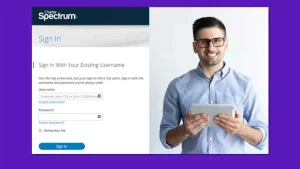
Setting up your Spectrum email only takes a few minutes. Follow these simple steps.
Step 1: Create a Spectrum Username
Before you can use Spectrum email, you need a Spectrum account. This usually happens when you sign up for internet or cable service. If you haven’t already created a username, here’s how to do it:
- Go to the Spectrum website
- Click on “Sign In” at the top right
- Choose “Create a Username”
- Enter your account number or phone number
- Follow the prompts to finish creating your login
Once you have a username and password, you’re ready to move on.
Step 2: Sign In to Spectrum.net
Now that your account is ready, go back to the homepage and log in with your new credentials.
- Enter your username and password
- You may be asked to verify your identity with a text or email
- Once logged in, you’ll see your account dashboard
Look for the envelope icon or the email tab. That’s your way into the email system.
Step 3: Create an Email Address
If you don’t already have an email address linked to your Spectrum account, the system will prompt you to create one.
- Click “Create Mailbox”
- Choose your email name (for example: john.doe@spectrum.net)
- Confirm your choice
- Agree to the terms and conditions
Your mailbox will be created in just a few seconds.
Step 4: Access Your Inbox
Now that your email address is active, you can start using it right away.
- Click on the envelope icon or “Check Email”
- Your inbox will open in a new window
- From here, you can send, read, delete, or organize your emails
You’ve now set up your Spectrum.net email account successfully.
How to Access Your Spectrum Email from Different Devices
You don’t always need to visit the website to check your email. You can set up Spectrum email on phones, tablets, and email apps.
1. On Your Phone (Android or iPhone)
To access email on your phone:
- Open your email app (like Gmail or Apple Mail)
- Choose “Add Account”
- Select “Other” or “IMAP”
- Enter your Spectrum email address and password
Use these settings:
Incoming Mail Server (IMAP)
- Server: mobile.charter.net
- Port: 993
- Security: SSL
Outgoing Mail Server (SMTP)
- Server: mobile.charter.net
- Port: 587
- Security: SSL/TLS
Make sure to save your settings and test the account by sending a message.
2. On a Computer Using an Email App
If you prefer using Outlook, Thunderbird, or Windows Mail:
- Open the app
- Choose “Add New Account”
- Enter your Spectrum email address and password
- Enter the same incoming and outgoing server settings listed above
You can now send and receive messages directly from your desktop.
What If You Forget Your Email Password?
If you can’t remember your Spectrum email password, don’t worry. It’s easy to reset it.
- Go to the Spectrum login page
- Click on “Forgot Username or Password?”
- Choose to reset your password
- Verify your identity using the method you selected during signup
- Create a new password and log in again
Try to choose a strong password that’s easy to remember but hard for others to guess.
Tips to Manage Your Spectrum Email
To keep your Spectrum.net email running smoothly, here are a few simple tips:
- Log in regularly so your account stays active
- Use folders to organize your messages
- Add important contacts to your address book
- Set up spam filters to block unwanted mail
- Don’t share your password with anyone
Spectrum may deactivate your email if it’s unused for a long time, so check it often.
Spectrum Email Features to Know
Even though it’s free, Spectrum email includes several features that make it a good choice:
- Spam Protection: Automatically blocks junk mail
- Storage Space: Offers enough storage for most users
- Web Access: Use it from any device with a browser
- Email Filters: Helps organize incoming messages
- Contact Management: Save names and addresses in one place
These tools make it easy to stay in control of your communication.
Moving from an Old Spectrum Email Address
If you used to have an older Roadrunner, Charter, or TWC email address, don’t worry. Those addresses still work. You can access them through the same Spectrum.net portal.
Just use your old email address and current password. If it doesn’t work, you may need to reset your password or contact support.
Need Help? Contact Spectrum Support
If you run into trouble setting up or accessing your email, Spectrum’s support team is ready to help.
You can:
- Call customer service
- Use the live chat feature on the website
- Visit a local Spectrum store
- Check the FAQ section on Spectrum.net
Make sure to have your account information ready when you reach out.
Conclusion
Setting up and using your Spectrum.net email account is simple. Start by creating your Spectrum username, then follow the easy steps to set up your mailbox. You can access your email from any device, whether you prefer checking it on your phone, tablet, or computer. With handy features like spam filters, contact lists, and mobile access, your Spectrum email account is more than just a basic service. It’s a useful tool that helps you stay connected. Don’t forget to log in regularly and keep your password safe. Enjoy the benefits of having a secure and easy-to-use email account.